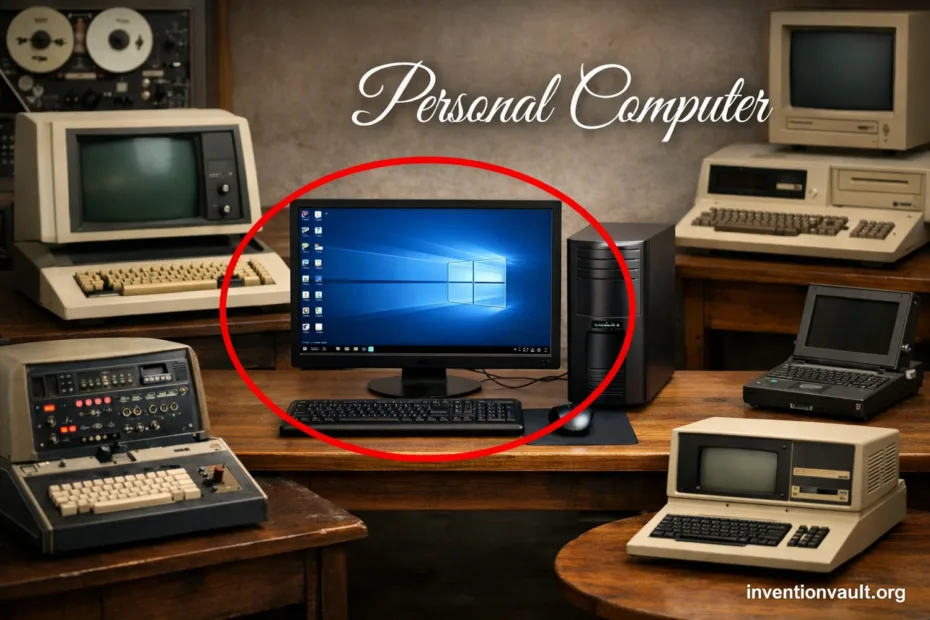
| Concept | Personal Computer (PC) |
| Core Definition | A general-purpose computer designed for one person to use at a time, with an interactive display, keyboard or touch input, and a full software environment. |
| Is There One Inventor? | No single inventor. The personal computer emerged from many teams improving microprocessors, memory, storage, and operating systems through the 1970s and 1980s. |
| Early Microcomputer Wave | Mid-1970s hobbyist kits and small systems made around a single-chip CPU, leading into mass-market home and office PCs. |
| Commonly Cited Milestones | Altair 8800 (1975) as a famous kit microcomputer; Apple II, TRS-80, and Commodore PET (1977) as early mainstream systems; IBM PC (1981) as a major standardizing platform; Macintosh (1984) as a landmark GUI computer. |
| What Made PCs Possible | The microprocessor, affordable DRAM, removable media (like floppy disks), better displays, and reliable mass storage. |
| Typical Core Parts | CPU + memory + storage + graphics + input/output, all coordinated by firmware and an operating system. |
| Enduring Value | A PC is a flexible tool: it can run productivity apps, creative tools, education software, and specialized programs in one place, with upgradeable or configurable parts in many models. |
A personal computer is not one gadget so much as a complete computing setup: hardware, firmware, an operating system, and apps that respond instantly to a person’s input. It can feel simple on teh surface, yet it is built from clear layers that each do a specific job.
- What Makes a Computer “Personal”
- Core Architecture of a Personal Computer
- Key Hardware Building Blocks
- Compute and Control
- Memory, Storage, and Graphics
- Storage Types and What They Change
- Operating Systems and the Software Layer
- Common PC OS Families
- What “Drivers” Really Do
- Form Factors and PC Families
- Compatibility, Standards, and Why They Matter
- Examples of Widely Used PC Standards
- Performance Terms That Actually Describe a PC
- Reliability and Safety as Part of the Design
- Where Issues Usually Start
- Data Safety in Plain Terms
- Environmental and Ethical Notes
- References Used for This Article
What Makes a Computer “Personal”
- Interactive use: the machine is tuned for direct input and immediate feedback.
- General-purpose design: one device can handle many tasks by installing software.
- Local control: your files, settings, and apps live under your account on the system.
- Peripheral support: keyboards, mice, printers, cameras, and storage connect through standard ports or wireless.
Core Architecture of a Personal Computer
Most PCs follow a straightforward model: a CPU reads instructions from memory, processes data, then writes results back to memory or storage. This loop is called the fetch-decode-execute cycle, and it sits at the heart of computing.
Input Devices ──► OS & Apps ──► CPU ──► Memory (RAM)
       ▲                 │         │
       │                 ▼         ▼
 Displays ◄────────── Graphics ◄── Storage (SSD/HDD)
The motherboard connects these parts with data pathways (buses) and controllers that manage I/O. Even when a PC looks compact, it still relies on the same roles: compute, memory, storage, graphics, and connectivity.
Key Hardware Building Blocks
Compute and Control
- CPU: runs instructions and coordinates tasks; modern CPUs use multiple cores for parallel work.
- Chipset / controllers: route data between storage, USB, networking, and expansion lanes.
- Firmware (BIOS/UEFI): starts the PC, checks hardware, then hands control to the operating system loader.
Memory, Storage, and Graphics
Power delivery and cooling matter too. A stable power supply and sensible thermal design protect components and help the PC sustain performance without sudden slowdowns.
Storage Types and What They Change
Storage is where a PC “remembers.” The choice between HDD and SSD shapes boot time, app launches, and how responsive the system feels during everyday work.
| Type | How It Stores Data | Typical Strength | Common Fit |
|---|---|---|---|
| HDD | Spinning disks with magnetic recording | Low cost per large capacity | Bulk files, archives, large media libraries |
| SATA SSD | Flash memory, connected over SATA | Fast responsiveness | Everyday PCs, upgrades for older systems |
| NVMe SSD | Flash memory over PCIe | Very fast reads/writes | Modern desktops/laptops, heavy workloads |
| Removable | USB drives, SD cards, external SSD/HDD | Portability | Moving files, cameras, transfers, backups |
Operating Systems and the Software Layer
The operating system is the PC’s traffic controller. It allocates memory, schedules CPU time, manages files, and connects apps to hardware through drivers. Without an OS, a personal computer is just parts that can power on.
Common PC OS Families
- Windows: broad hardware support and a huge software catalog.
- macOS: tightly integrated hardware-software design with a strong creative tool ecosystem.
- Linux: many distributions, valued for control and customization.
- ChromeOS: web-first approach, often on lightweight laptops and education devices.
What “Drivers” Really Do
A driver is a small piece of software that tells the OS how to talk to a specific device. It turns generic commands into hardware-specific signals for things like Wi-Fi, audio, printers, and graphics.
Form Factors and PC Families
“PC” covers many shapes. What stays consistent is the personal setup: a complete system built to run a wide range of apps, store personal files, and connect to peripherals through standard interfaces.
Desktop PC (tower, small form factor, or custom builds)
A desktop emphasizes expandability. Larger cases can fit more storage, more cooling, and stronger GPUs. Desktops are common in offices, labs, and homes where a fixed workspace makes sense.
Laptop PC (notebook, ultrabook)
A laptop integrates display, keyboard, battery, and speakers into one portable unit. The design balances efficiency, thermals, and size, which is why parts are often less modular than a desktop.
All-in-One PC (computer built into the monitor)
An all-in-one saves space by placing most components behind the screen. It often focuses on a clean setup with fewer cables, while keeping a familiar desktop workflow.
Mini PC (small box, quiet, low power)
A mini PC compresses a full personal computer into a tiny case. Many use efficient CPUs and fast SSD storage, making them popular for simple offices, media setups, and compact desks.
Workstation (high reliability, heavy workloads)
A workstation targets demanding tasks like large design projects, simulation, data analysis, and professional media production. It may include extra RAM, stronger GPUs, and features aimed at stability.
Single-Board Computer (PC-like computing on one board)
Some compact systems place CPU, memory, and I/O on a single board. They can function as a small personal computer for learning, lightweight servers, and embedded projects, usually relying on efficient hardware and flexible software.
Compatibility, Standards, and Why They Matter
One reason the personal computer scaled worldwide is standardization. Shared connectors and interfaces let many brands of hardware and software work together. This is why terms like USB, Wi-Fi, and PCIe show up across generations.
Examples of Widely Used PC Standards
- USB for peripherals and external storage, including keyboards and drives.
- HDMI / DisplayPort for displays, plus audio in many setups today.
- Ethernet and Wi-Fi for networking, enabling local sharing and internet access.
- PCIe for expansion (graphics, storage, capture cards) and high-speed internal connections inside desktops.
- SATA and NVMe for storage communication, shaping how fast apps load and files move around.
Performance Terms That Actually Describe a PC
PC performance is a mix of compute, memory, graphics, and storage. A single number rarely tells the full story. Looking at a few clear traits helps you understand why one personal computer feels snappy while another feels slow under the same apps and workload.
- CPU cores and design: more cores can help with parallel tasks, while a strong single-core design helps responsiveness in many everyday programs.
- RAM capacity: low RAM forces constant swapping to storage, which can make a system feel laggy.
- SSD vs HDD: storage latency changes boot time and app launches more than many people expect; a good SSD is often the biggest “feel” upgrade.
- GPU capability: 3D work, video effects, and modern creative tools rely on graphics throughput and VRAM.
- Thermal limits: compact systems may reduce speed to stay cool, so sustained performance depends on cooling and power design.
Reliability and Safety as Part of the Design
A personal computer contains parts that naturally age: fans can wear, batteries lose capacity, and storage has finite endurance. Good designs account for this with cooling, stable power, and sensible component choices. It’s a practical kind of engineering, not magic.
Where Issues Usually Start
- Heat: persistent heat stresses components and can trigger automatic throttling.
- Power events: surges and unstable power can affect motherboards and storage.
- Mechanical wear: moving parts like fans, and in HDDs the spinning media, have physical limits.
Data Safety in Plain Terms
Files live on storage, not “in” an app. When storage fails, data can be lost even if the rest of the PC seems fine. That’s why professionals treat data and hardware as separate concerns, with copies stored in more than one place.
Environmental and Ethical Notes
PCs are built from metals, plastics, and complex components, which makes repair and responsible disposal important. Many manufacturers and recyclers support e-waste programs, and energy-efficient designs reduce electricity use during everyday computing. Choosing longer-lasting hardware and keeping devices in use reduces material demand in a simple, practical way.
References Used for This Article
- Computer History Museum — Timeline of Computer History: An authoritative museum-curated overview of key milestones in personal computing.
- IEEE — History of the Personal Computer: A technical and historical perspective from a leading engineering organization.
- Encyclopaedia Britannica — Personal Computer: A concise, professionally edited explanation of PC definitions and evolution.
- IBM Archives — The IBM Personal Computer: Primary-source material on the IBM PC and its role in standardization.
- Intel — The Story of the Intel 4004: An official account of the first commercial microprocessor that enabled early PCs.
- Stanford University — History of Personal Computers: An academic overview connecting hardware advances to PC adoption.