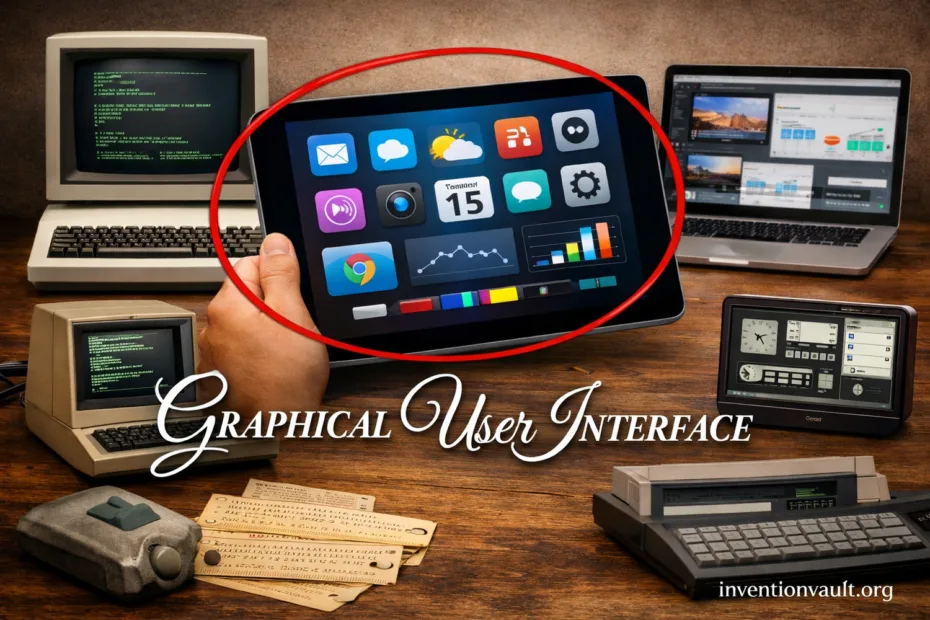
| Invention | Graphical User Interface (GUI) |
| What It Is | A visual user interface that lets people interact through on-screen objects such as windows, icons, menus, and controls. |
| Core Interaction Style | Direct manipulation: you point, tap, drag, and drop to act on visible elements, with instant feedback. |
| Key Early Contributors | Douglas Engelbart (interactive computing demos), Xerox PARC research teams (Alto, Smalltalk ideas), and later commercial teams who refined desktop-style GUIs. |
| Early Milestones | 1968 public demo of mouse-driven interactive concepts; 1973 Xerox Alto (bitmap display + mouse); 1981 Xerox Star (desktop metaphor in a commercial system). |
| Mainstream Expansion | 1984 Apple Macintosh popularized GUI conventions for many users; mid-1980s+ Microsoft Windows broadened adoption across PC ecosystems. |
| Enabling Technologies | Bitmap graphics, pointing devices (mouse, trackpad), event-driven software, and windowing systems. |
| Typical GUI Parts | Widgets (buttons, sliders), navigation (tabs, sidebars), dialogs, icons, and text fields. |
| Where You See It | Desktop operating systems, mobile apps, web applications, kiosks, car dashboards, smart TVs, and many embedded interfaces. |
| Why It Matters | It lowers the learning barrier by making actions discoverable, reducing memorization, and supporting recognition over recall. |
Graphical user interfaces changed how people meet computers. Instead of remembering commands, you work with visible controls and on-screen objects. That shift made many digital tasks feel famliar fast, even on your first day with a new app.
- What a GUI Is
- Windows, Icons, Menus, and Pointer
- What You Notice
- What the System Does
- Core Building Blocks
- Widgets and Controls
- Layout and Visual Hierarchy
- Icons and Labels
- How a GUI Works Underneath
- Major Milestones
- GUI Families and Variations
- Desktop Metaphor and Why It Stuck
- Desktop Metaphor in Practice
- Clarity, Feedback, and Trust
- Signals That Reduce Confusion
- Signals That Support Confidence
- Accessibility as a First-Class Feature
- Common Accessibility Foundations
- Important Terms You Will See
- Where GUIs Are Headed
- References Used for This Article
What a GUI Is
A GUI is a visual interaction layer that sits between you and the underlying system. It presents state (what is happening) and affordances (what you can do) in a way that supports quick decisions.
- You see actions as buttons, menus, and icons, not as lines of code.
- Feedback arrives through animations, highlights, and changes in layout.
- The system stays consistent so learned patterns transfer from one screen to another.
Windows, Icons, Menus, and Pointer
Many classic desktop GUIs follow the WIMP model: windows organize work, icons compress meaning into small symbols, menus group options, and a pointer selects targets with precision.
What You Notice
- Focus: one window is “active,” others wait.
- Selection: a file, text range, or object is highlighted.
- Constraints: disabled buttons and grayed items signal unavailable actions.
What the System Does
- Routes input events (clicks, keys) to the right component.
- Updates application state and redraws what changed.
- Maintains an accessibility tree so assistive tech can describe the UI.
A GUI succeeds when you can predict results from what you see, and recover easily when you misclick.
Core Building Blocks
Widgets and Controls
Widgets are the reusable parts that make a GUI feel predictable. Buttons trigger actions, sliders change values, text fields capture input, and toggles express binary choices. When widgets share familiar behavior, users build muscle memory quickly.
Layout and Visual Hierarchy
A GUI is also a layout system. Spacing, alignment, and grouping define what belongs together. Good hierarchy makes primary actions obvious, while secondary options stay close but quiet, using progressive disclosure.
Icons and Labels
Icons are powerful when they are conventional and supported by text. A symbol alone can be ambiguous. Pairing an icon with a clear label boosts discoverability, and it helps across languages and reading levels, especially with consistent placement.
How a GUI Works Underneath
Behind the scenes, a GUI runs on events and rendering. Input devices generate events (mouse move, key press, touch). The application updates state, then a renderer draws the new frame. Modern systems often use compositing, where separate layers combine into one smooth picture.
| Layer | Role in a GUI | What You Experience |
|---|---|---|
| Input | Turns physical actions into events. | Clicks, taps, scrolls, shortcuts feel immediate. |
| Event Loop | Queues, dispatches, and prioritizes events. | The UI stays responsive during normal work. |
| UI Toolkit | Provides widgets, layout, and styling. | Controls behave consistently across screens. |
| Window Manager / Compositor | Manages windows and combines layers. | Animations look smooth, windows stack correctly. |
| Accessibility | Exposes structure and meaning to assistive tech. | Screen readers and keyboard navigation stay usable. |
Major Milestones
The GUI did not arrive in one moment. It matured through research prototypes, then through commercial refinement. Each step clarified what works: pointing, clear feedback, and a stable set of interface conventions.
| Year | Milestone | Why It Mattered |
|---|---|---|
| 1968 | Engelbart’s interactive demo | Showed how a mouse and screen elements could support collaborative work. |
| 1973 | Xerox Alto | Proved the power of bitmap displays and a mouse for windowed interaction. |
| 1981 | Xerox Star 8010 | Packaged the desktop metaphor with icons and documents in a commercial system. |
| 1983 | Apple Lisa | Advanced GUI consistency with menus, windows, and mouse-driven workflows. |
| 1984 | Apple Macintosh | Made GUI interaction a mainstream expectation for personal computing. |
| 1985 | Microsoft Windows 1.0 | Expanded the GUI idea across a broad PC software ecosystem. |
| 2007+ | Touch-first smartphone GUIs | Shifted interaction toward gestures, direct touch, and content-first layouts. |
GUI Families and Variations
Today’s GUIs share a common goal—make actions visible and outcomes predictable—but they differ in input style and constraints. A mouse favors small targets. Touch needs bigger targets and fewer crowded controls. Web GUIs juggle many screen sizes with responsive layouts.
| GUI Type | Typical Input | Strength | Common Constraint |
|---|---|---|---|
| Desktop WIMP | Mouse, keyboard, trackpad | Precision and multitasking with multiple windows | Can become dense; needs clear hierarchy |
| Touch-first | Tap, swipe, pinch | Directness and content focus | Less room for menus; relies on gestures |
| Web GUI | Mouse + touch + keyboard | Runs anywhere; fast distribution | Must handle many devices and performance limits |
| Kiosk / Embedded | Touch, buttons, knobs | Simple, guided tasks with clear flows | Limited input; needs strong error prevention |
| Spatial / 3D UI | Gesture, gaze, controllers | New ways to arrange information in space | Comfort and learnability are harder |
Desktop Metaphor and Why It Stuck
The desktop metaphor turned abstract computing into familiar objects: documents, folders, and a “place” to put work. It helped people build a mental model of saving, copying, and organizing. Even when modern apps hide the desktop, the metaphor still shapes navigation and file management.
Desktop Metaphor in Practice
- Objects represent files, apps, and destinations.
- Actions map to verbs: open, move, rename, delete, share.
- Feedback shows progress: spinners, progress bars, status text.
- Reversibility supports confidence through undo and safe recovery.
Clarity, Feedback, and Trust
Users trust a GUI when it behaves like it looks. A pressed button should feel pressed. A disabled control should stay inactive. When progress takes time, the interface should explain what is happening in plain language, not in cryptic codes. That mix of clarity and feedback is where comfort comes from.
Signals That Reduce Confusion
- Visible status: you can tell what mode you’re in.
- Immediate response: the system acknowledges every input.
- Clear labels: actions are named the way people think.
- Consistent placement: key controls don’t wander.
Signals That Support Confidence
- Undo and history reduce fear of mistakes.
- Preview before a big change helps decision-making.
- Confirmations appear only when a step is truly risky.
- Readable defaults keep people moving forward.
Accessibility as a First-Class Feature
A modern graphical user interface is not only visual. It must also be operable through keyboard navigation, understandable to screen readers, and robust under zoom or high-contrast settings. When accessibility is built-in, it usually improves the experience for everyone.
Common Accessibility Foundations
- Focus indicators that are easy to see.
- Text alternatives for icons and meaningful elements.
- Logical tab order so navigation matches visual flow.
- Sufficient contrast and scalable typography.
Important Terms You Will See
- Human-Computer Interaction (HCI): the field studying how people and computers communicate through interfaces.
- Direct Manipulation: interaction where objects stay visible and actions feel physical.
- Windowing System: software that manages windows, drawing, and input routing.
- UI Toolkit: libraries that provide widgets, layout, and styling.
- Compositor: a system that combines UI layers into a final frame for smooth motion.
- Usability: how easily people can learn and succeed with an interface.
Where GUIs Are Headed
GUIs keep absorbing new inputs and new contexts. Touch and stylus made interfaces more gesture-driven. Voice adds a layer of intent without removing the need for visual confirmation. Spatial interfaces experiment with depth and motion, yet they still lean on the same foundations: clear structure, readable feedback, and reliable control.
References Used for This Article
- Stanford University Archives — Guide to the Douglas C. Engelbart Papers (M0638): Documents Engelbart’s NLS work and the 1968 demo’s significance in interactive computing.
- Doug Engelbart Institute — 1968 Demo (MouseSite): Summarizes the “Mother of All Demos” and the interactive concepts shown live in 1968.
- Computer History Museum — Xerox Alto: Explains how the Alto combined bitmap graphics and mouse input to enable early windowed interaction.
- Computer History Museum — The Xerox Star Runs One More Time: Provides primary-era framing of the Star’s desktop technology and object-based interface ideas.
- ACM Digital Library (IEEE Computer) — Direct Manipulation: A Step Beyond Programming Languages: Defines direct manipulation and the interface properties that make GUIs feel learnable and responsive.
- W3C WAI — Accessibility Principles: Outlines foundational accessibility requirements that inform modern GUI and web UI behavior.
- Computer History Museum — 1984 Timeline Entry (Apple Macintosh): Summarizes the Macintosh’s role in popularizing mouse-driven GUI conventions for mainstream users.
- Microsoft Learn — The History of Microsoft (1985): Notes the retail shipment of Windows in 1985 as a key step in broad GUI adoption on PCs.